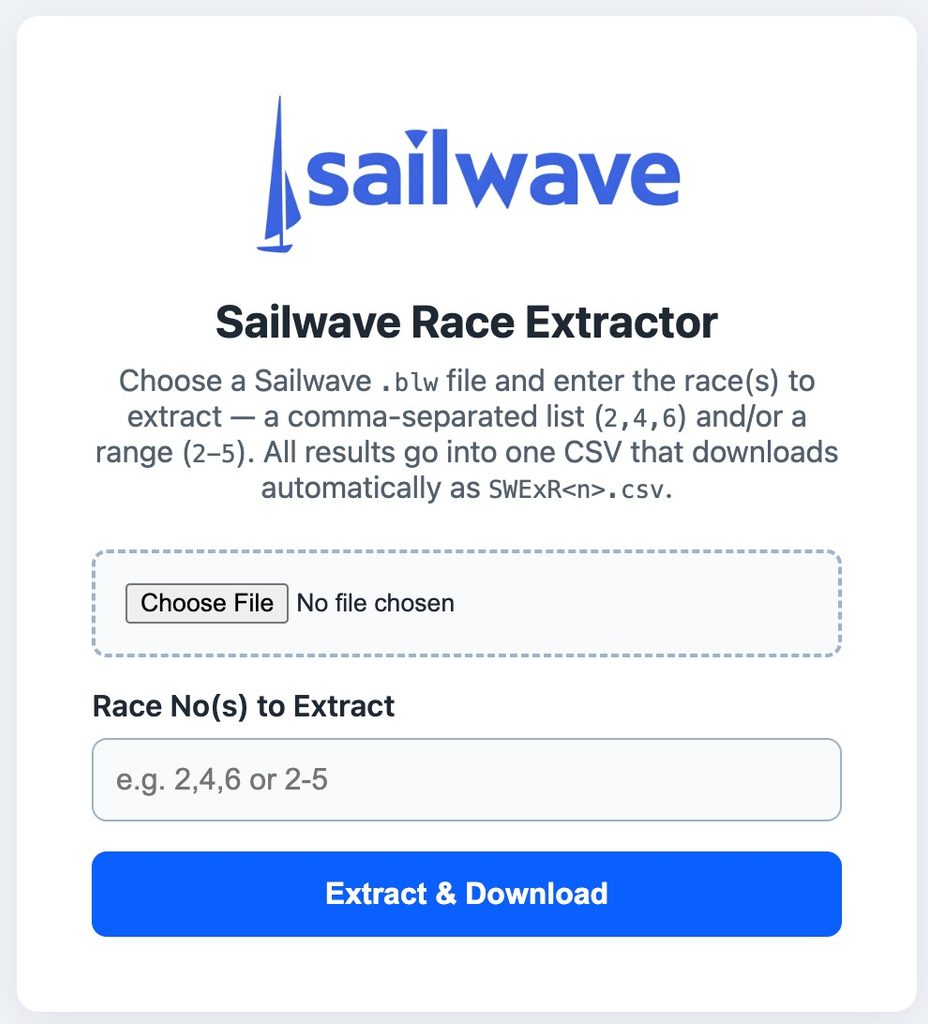
You should then see something similar to this open in your browser.
Operation is extremely simple. Simply click “Choose File”, upload the Sailwave .blw file, not forgetting to save the file if it’s open in Sailwave previously. Enter the race to extract. This can be a comma-separated list or a range using a hyphen. Click Extract and Download. You’ll then download a file with the file name in the format shown above, and you now have a CSV of the races extracted.
You can import these races using “File > Import Results from CSV”, and you can create other events. Made up of these races
This program is included with the Sailwave installation
Simply type SWCList in the Windows search box, and it should appear
This Program also allows creation of CSV files to allow exporting data to other parties.
Sailwave includes the ability to print Competitor lists, so why use this program?
This program adds some features currently not available in Sailwave
Ability to sort on 3 Columns
Ability to create and sort on the last 4 or 3 digits of the sail number
Can sort on Lastname (HelmNameRev) when Sailwave format is “Firstname Lastname”
Highlights in Bold any duplicate sail numbers, full and shortened
Ability to add Headings on changes of Sort key
Adds Count to Headings
Can produce page breaks and adds column headers for multiple pages
Only temporarily opens the file in read-only mode, so it can be used in multi-user situations
Sorts Gold, Silver, Bronze in the correct order ( not alphabetical ). Also Yellow, Blue, Red, and Green
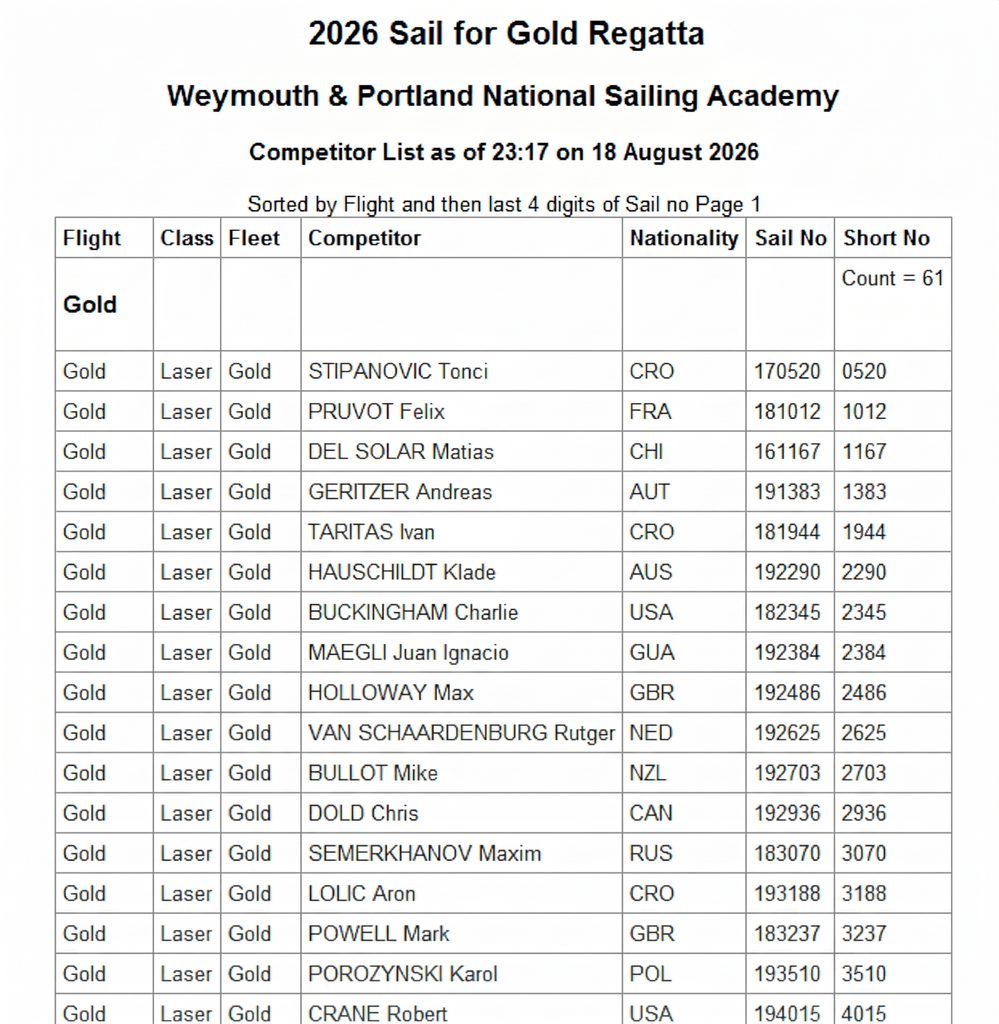
So what does it produce? Below is a sample of the output:
Some of the Key Features are:-
Designed to be extremely easy to use and very fast
When you run the program, it automatically reads the last file opened with Sailwave
Displays the Event, Venue, and Title
Counts and displays the Number of competitors
Learns the columns used within Sailwave and the properties of these.
Uses the same Styles as used by Sailwave, with optional Default Plus Override.
Can be sorted on 3 columns
Ability to specify which Columns are published – Use the Columns to publish button
Can create a CSV file or HTML You can create PDF files from the HTML file by using the Print to PDF The CSV Export also allows optional filtering to be applied. Leave the filter blank if you wish to export all records
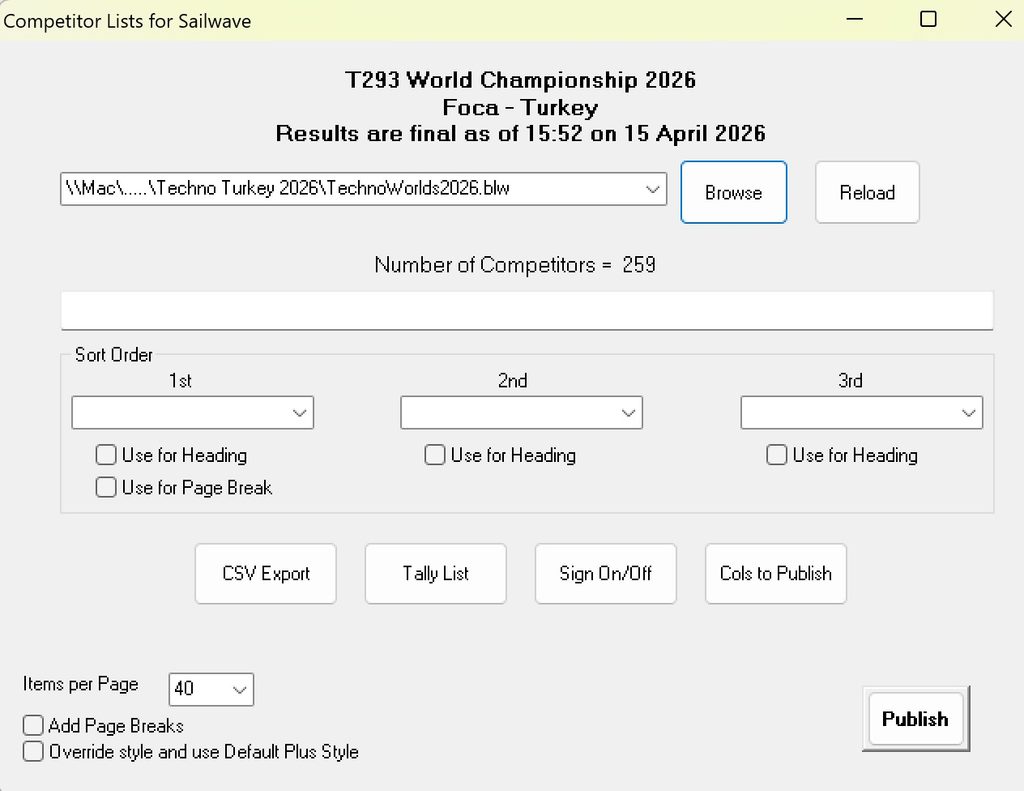
Normally, it will automatically load the last file used by Sailwave; however, if you wish to use a different file:-
The Dropdown box is populated with the last 20 files used by Sailwave
The Browse allows you to open any Sailwave .blw file
Reload allows the file to be reloaded if it changes (You are warned with the option to reload if the file has changed since you loaded it when you click Publish)
You can create a page break whenever the 1st sort field changes.
Examples would be starting a new page for each flight, e.g., Gold, Silver, Bronze
or starting a new page for each Fleet, e.g., Techno, RSX, Raceboard, Formula.
It can break the output into pages, with the headings repeated at the top of each page. This is not an exact science, as it depends on many factors, such as your styles and browser magnification. You can adjust the number of lines per page; the default of 40 can be increased or decreased if needed. This is a trial-and-error process but is very quick to do.
Sorting on Reversed names
Version 1.1 adds the ability to sort on reversed helmname. So if you like to use the more friendly/informal format of Firstname Lastname, this version will allow you to produce lists in Lastname order but still display them in FirstName Lastname order. This works by detecting the space in the name. Just be careful if you have dual First names, such as Mary Ann Smith. In this case, enter this as Mary-Ann Smith or Mary_Ann Smith
SWPrize is included with the standard installation of Sailwave.
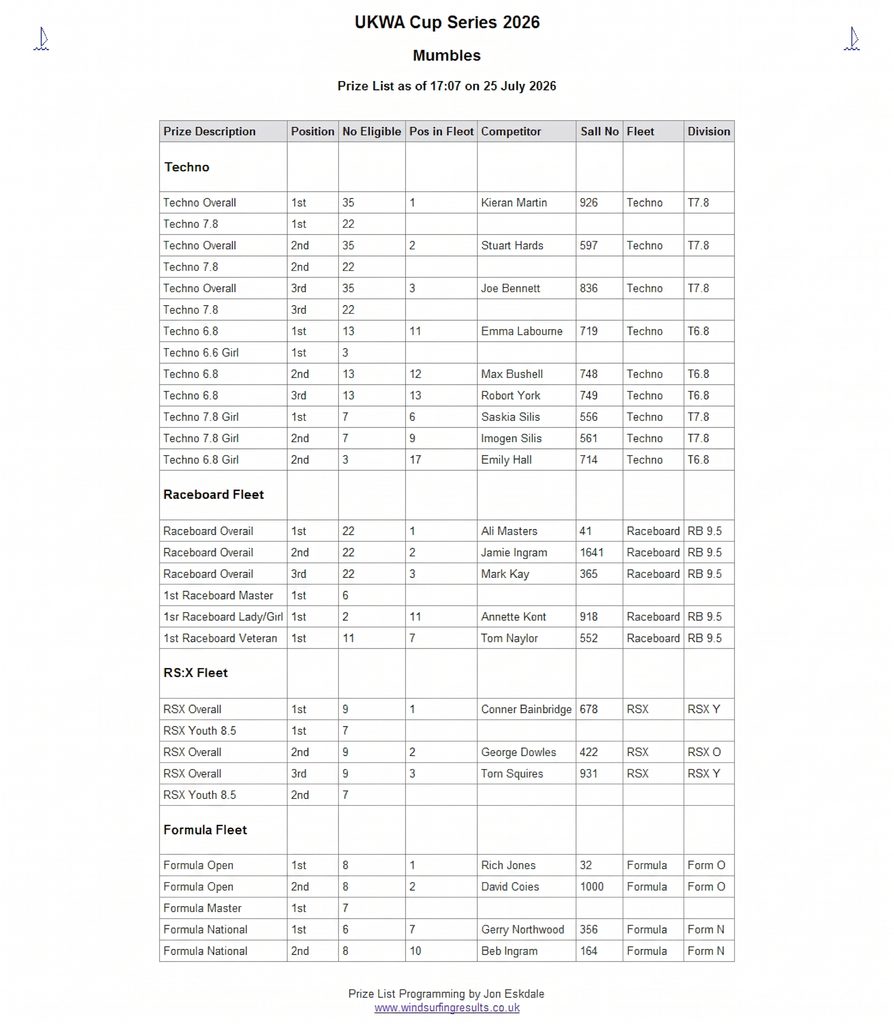
So what does it produce? Below is a sample of the output:
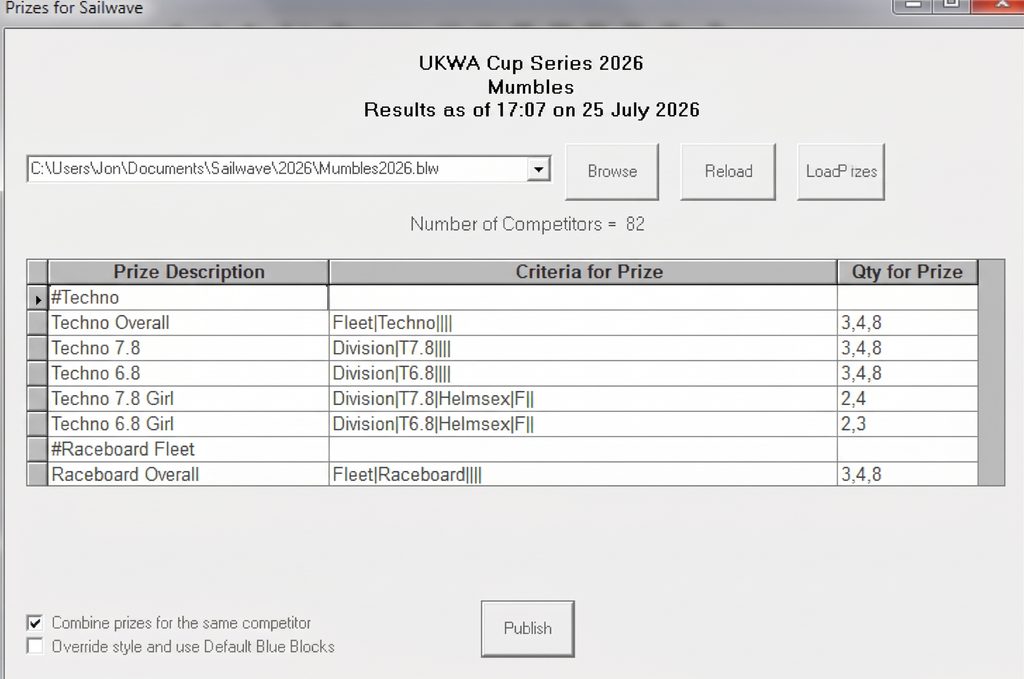
And this is the format of program that specifies the output
Some of the Key Features are
Designed to be extremely easy to use and very fast
When you run the program, it automatically reads the last file opened with Sailwave
Displays the Event, Venue, and Title
Counts and displays the Number of competitors
Learns the columns used within Sailwave and the properties of these.
Uses the same Styles as used by Sailwave.
Normally, it will automatically load the last file used by Sailwave however, if you wish to use a different file:-
The Dropdown box is populated with the last 20 files used by Sailwave
The Browse allows you to open any Sailwave .blw file
Reload allows the file to be reloaded if it changes (You are warned with the option to reload if the file has changed since you loaded it when you click Publish)
If you have entered prizes for this event, then they are loaded with the. blw Sailwave file
If you have defined a prize list for a different event, then to save re-entering it, you can use the Load Prizes to use the same for this event.
The Prizes are defined in a 50-row by 3-column grid
If the Prize Description starts with a #, e.g., #Techno then this signifies a Heading
The Criteria for Prize allows you to define the Criteria that the Prize is given for.
Qty for Prize allows you to specify when Prizes are given – Looking at the example above 3,4,8
The first 3 signifies that a 1st prize is awarded if there are 3 or more eligible Competitors (No prize is awarded if less than 3 eligible competitors)
The Second 4 signifies that a 2nd prize is awarded if there are 4 or more eligible Competitors
The third 8 signifies that a 3rd prize is awarded if there are 8 or more eligible Competitors.
You are not limited to just 3 prizes
If there is only one prize, then only enter one number; a 1 would give a prize if there is a single eligible competitor.
If the number of eligible competitors does not meet the minimum, then the Prize is not printed.
If there are no eligible prizes within the Heading Group, the Heading is not printed.
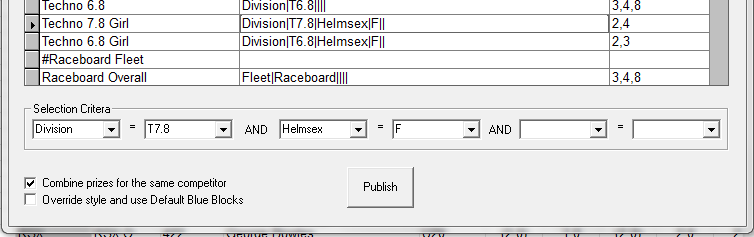
When you click in the Criteria column, the Selection Criteria boxes appear as shown above.
You can select 3 conditions for the prize. Looking at the example above for the Techno 7,8 Girl prize:-
The First Box is automatically populated with the Columns used in Sailwave
Once you select a value, the Second box is populated with the Valid values you can select
Here we have selected 2 prizes for Techno 7.8 Girls where the Division = T7.8 and Helmsex = F
If you rename columns in Sailwave, the renamed values will appear in the Dropdown boxes, but the true name will appear in the grid. This allows the same prize definition to be used when columns are renamed for different events
In the rare occasion when more than 3 criteria are needed then it is recommended that you use a column in Sailwave to hold the conditions. This column can be populated within Sailwave using the Toolset Competitor fields. This is also safer, as it allows you to check which competitors are affected
To enable easier editing of the grid, right-click on the boxes at the left of the grid, and you can Copy, Paste, Insert, or Delete Rows of the grid
When you have defined the prizes, click Publish and this will
Save the prize definitions to a file in the same directory as the blw file with the same name but a .prz extension
The Prizes are calculated and displayed in the Default Browser, similar to publishing results in Sailwave.
The Same Style as was used by Sailwave for the results is used unless the checkbox to use the Blue blocks is checked
A file Prizes.htm is stored in the same directory as the blw file.
If the Combine prizes for the same competitor is checked, Then when a prize is displayed, any other prizes that this competitor has won are displayed immediately following.
The column displays are semi-intelligent in that they depend upon which ones are used in Sailwave. e.g., above, the Nationality is not used, but if it had been used in Sailwave, then the Column would have been displayed